This section introduces the most frequently asked questions and tips for operation in the early stages of installation. If you have not yet used MagicPod, please refer to Started Guide first.
Table of contents
-
Test Creation
- Not familiar with MagicPod-specific terms such as "UI", "UI elements", etc.
- Cannot select a UI element
- Cannot get elements in WebView
- UI element you want to operate is off-screen
- Not sure which locator to use
- There are multiple operations that are performed over and over again across test cases, such as login
- Click on a specific position of a UI element
- Generate different strings for each execution
- Close a dialog
- Launch other apps such as the Settings app
- Make test steps easier to manage
- Know what other commands are available
-
Test Execution
- Get an error saying UI element not found
- Cannot understand the contents even if you see the failure message
- Inquire about a test failure
- Run regularly based on a schedule
- Notify test results
- Batch run takes a long time
- Execute with multiple device patterns
- Succeed in single run but fail in batch run
- Test Management
- Other
Test Creation
Not familiar with MagicPod-specific terms such as "UI", "UI elements", etc.
Please refer to Started Guide: 4 - 5. Glossary of Terms for more information.
Cannot select a UI element
There is a possibility that other UI elements overlap with the UI element and cannot be selected. You can select the UI element you want to select by clicking Temporarily hide several times to hide the overlapping element.
If you still cannot select a UI element, you can send an inquiry by clicking Inquiry about this UI from the menu of the UI in UI List. Please refer to the help page about locators
Reference: About locators
Also, if elements are not captured well overall, check that they are not elements in WebView, you will need to scan differently than usual for WebView.
If the element is in Webview, check Enable Webview scan and capture it so that it is treated as HTML and can be selected. You can also check the UI tree to see if it is in Webview.
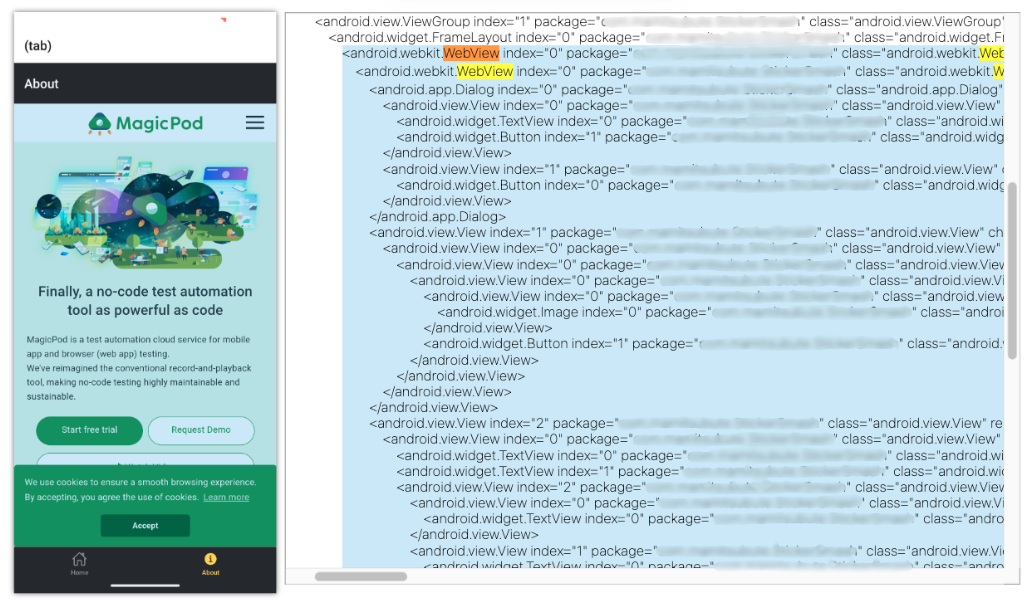
Reference: WebView tests
Cannot get elements in WebView
If you check Enable Webview scan and capture, you can treat the elements in WebView as HTML and you can select them.
Reference: WebView Tests
UI element you want to operate is off-screen
With the element selection mode deactivated, manually swipe on the cloud device to bring the UI element you want to manipulate into the screen. Then capture or start the element selection mode again to retrieve the element.
Add the Continue swipe command to the step to display the element and then tap it etc.
Reference: Method of Operating Screens Where Scrolling is Required
Not sure which locator to use
Basically, the suggested locators are the first ones specified and recommended from the top of the list of candidates. Add a new locator if necessary, as a locator with a value that changes from run to run or a long locator will be unstable.
Reference: About locators / Add/Edit a locator
There are multiple operations that are performed over and over again across test cases, such as login
If multiple operations such as Input -> Tap on the same screen appear in multiple test cases, you can define the operation as a Shared step so that it can be used as a single command from other test cases. When fixes are necessary, only a single fix of the content of the shared step is required, thus reducing the time and effort required for test case maintenance.
Reference: Utilize shared steps
Tap on a specific position of a UI element
A UI element you want to manipulate is overlapped by another UI element.
You can tap on the non-overlapping part of the UI element, such as left side.
A UI element not recognized by MagicPod
The UI element is intentionally placed outside of other recognizable UI elements nearby, such as at coordinates X=50,Y=200. (X=0,Y=0 for the upper left corner and X=100,Y=100 for the lower right corner)
This is only done when "Cannot select a UI element" does not solve the problem, as it tends to be unstable.
The normal Click command operates by directly calling an event associated with a UI element, but the Click specified position command operates by clicking based on the apparent position, such as left edge or coordinates.
Reference: Tap specified position
Generate different strings for each execution
You can use the Store unique value generated based on the current time command to create a different variable for each execution.
You can use the variable as it is or use it as Name_${Variable name}.
Close a dialog
Operate as usual as it can be recognized as a UI element.
Launch other apps such as the Settings app
You can launch other apps with the Launch other app (iOS/Android) command.
Reference: Launch an app such as a browser using mobile app test scripts
Make test steps easier to manage
When you want to make a chunk of test steps easier to understand, you can use the Comment command to explain the contents, or the Blank line command to insert a blank line.
When you want to include a note, use the Comment command to highlight it with a pictogram.
Know what other commands are available
You can see all commands in Command List.
Test Execution
Get an error saying UI element not found
Put a wait time before the failed step.
Basically, it automatically waits until the screen has finished loading, but there are cases where the UI element cannot be found due to insufficient loading. In such cases, a command to wait until the UI element is visible/exists/equals, or a command to wait for a fixed value of X seconds, etc., can be placed before the failed step.
Reference: Wait command
Change the locator specified for the UI element of the failed step
When MagicPod searches for UI elements, it uses locators. For example, if the locator changes with each execution as shown below, the test will fail because the locator is different from the one used when the test was created. Therefore, it is necessary to change the locator from one of the proposed locators to another or add a new locator.
- Based on Amount/DateTime
e.g.) xpath=//output[text()='$70.00']
- Based on value, id, etc. that may change
e.g.) xpath=//input[@value='mp62130']
Reference: How to maintain a test when it fails - Fix an unstable test case
Cannot understand the contents even if you see the failure message
You may find a solution by searching for that failure message on the help page. If you cannot find it, or if it is difficult to identify the cause even after reading the help page, please contact us by clicking Inquiry about the test failure.
Reference: Inquiries About Test Failures
Inquire about a test failure
If you do not know the cause of the error, click Inquiry about the test failure to inquire about it.
Reference: Inquiries About Test Failures
Run regularly based on a schedule
Schedule regular build + batch test runs using CI tools such as Bitrise, CircleCI, etc. You can also execute it every time it is pushed to Git.
Reference: Started guide: 3 - 1. Daily build + batch test run schedule settings
Reference: Run tests regularly with CI services
Notify test results
You can be notified via email and Slack.
Alternatively, you can use MagicPod's WebAPI to send notifications to Teams, etc.
Batch run takes a long time
Parallel run
You can reduce execution time by running tests in parallel.
For more information, please refer to this page.
Capture only specific steps
By default, all steps are captured, but you can save time by capturing only specific steps.
Select Every UI transit or Failure capture only from Every step in the Runtime Screenshots field on the batch runs settings screen. If there is a specific step you want to capture, add the Take screenshot command after that step.
Executing with multiple device patterns
You can run multiple device and model patterns in parallel.
For more information, please refer to this page.
When running tests in parallel across multiple types of browsers and devices
Succeed in single run but fail in batch run
Internally, there is no significant difference in behavior between a single run and a batch run. Therefore, it is highly likely that the test is unstable or failing due to the influence of tests run before the target test.
Please refer to this page:
Tests that succeed in single run fail in batch run
Test Management
Manage test cases
We recommend using the Folder management feature and Labels to organize. Enabling the generative AI feature automatically displays test case descriptions in the test case list, making it easier to understand.
Reference: Test Case Summary Feature
Manage test results
- Use generative AI tools
- By using the MagicPod MCP Server together with generative AI tools such as Claude, you can automatically generate dashboards for test results management.
- Use cloud tools to manage test results (Testrail, QualityForward, etc.)
- By retrieving test results by MagicPod's WebAPI, results data can be automatically accumulated.
- Paste result captures and result URLs into Spreadsheet/Excel.
- You can download all result captures from the test results of a batch run. You can also selectively download by adding the Take screenshot command.
Reference: Manage test results
Divide and counting projects
It is recommended to assign one project to one product.
Reference: What Is a Project?
Shared UIs and shared steps can be used across test cases in a project.
If the app under test supports iOS and Android respectively, it is recommended to separate the projects. Test cases also need to be created for each; if the app uses mainly WebView, common test cases can be used.
Other
Which items to start creating tests from
First, create tests for basic features such as login, and payments, which pose the greatest risk for quality assurance.
Once you have several test cases, run them daily. When you run the tests every day, you will encounter various problems that you were not aware of until you started running the tests, such as test stability. As you solve these problems, you gradually increase the number of tests.
After that, you will cover a wide and shallow range of features and screens. Rather than automating the manual test cases at hand in order from the top to the bottom, it is more efficient to prioritize and automate only the basic test cases first.
Reference: Start guide: 5. Establish test automation habits as quickly as possible (Mobile App)
Another method of prioritization is to weight test items based on their suitability for automation and compare the scores.